Note: This article is for the newly re-designed module. This updated module is in the process of being rolled out and may only be available to some users.
Overview
The Amenity Reservations feature allows residents to submit amenity reservation requests from the BuildingLink resident portal. These amenity reservation requests will be automatically received by property staff. Depending on your property's settings, this feature may or may not be enabled.
Note: Click on the images to enlarge them.
Table of Contents
- Submitting Amenity Reservation Requests
- Using the Amenity Reservations Availability Grid View
- Viewing and Editing Amenity Requests
Submitting Amenity Reservation Requests
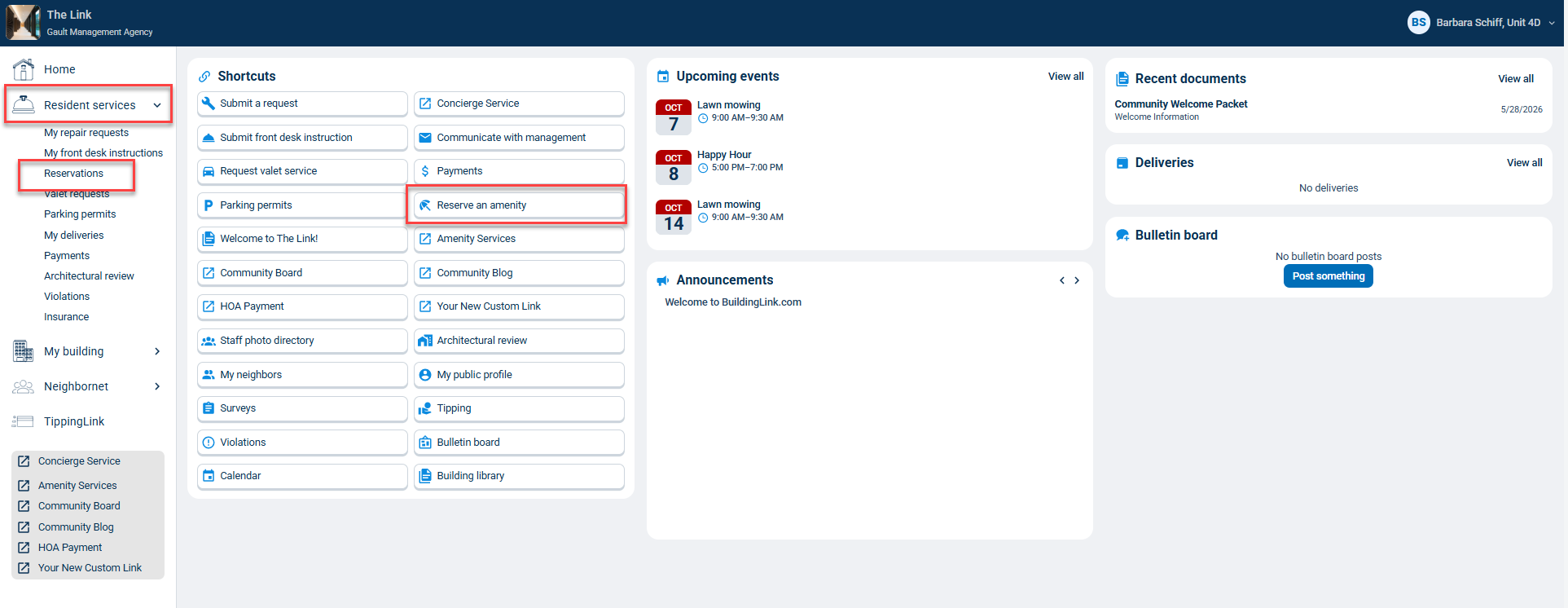
If your building has enabled residents to submit amenity reservation requests through BuildingLink, you’ll see a button on your Home Page in the Shortcuts section to Reserve an amenity. You can also go to the Resident services tab on the left and select Reservations.
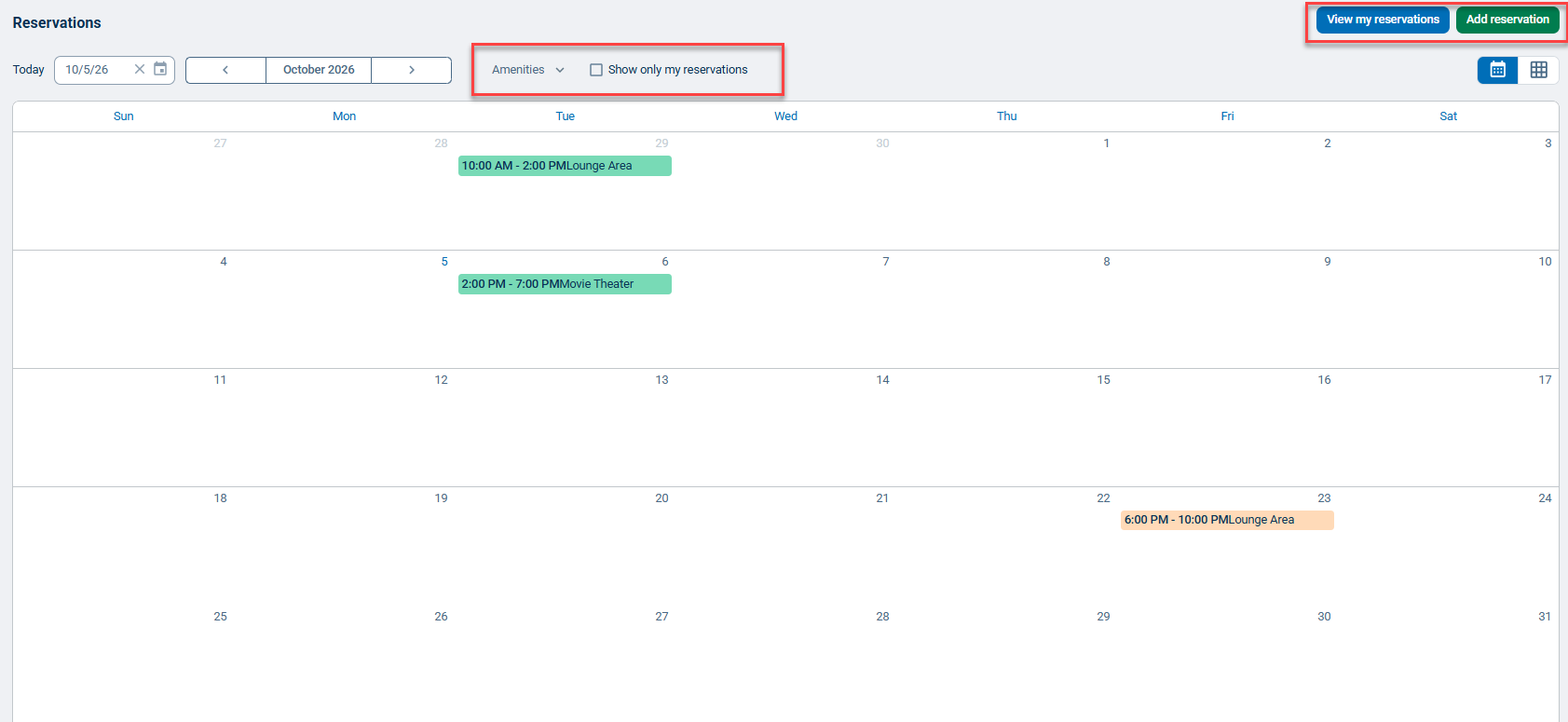
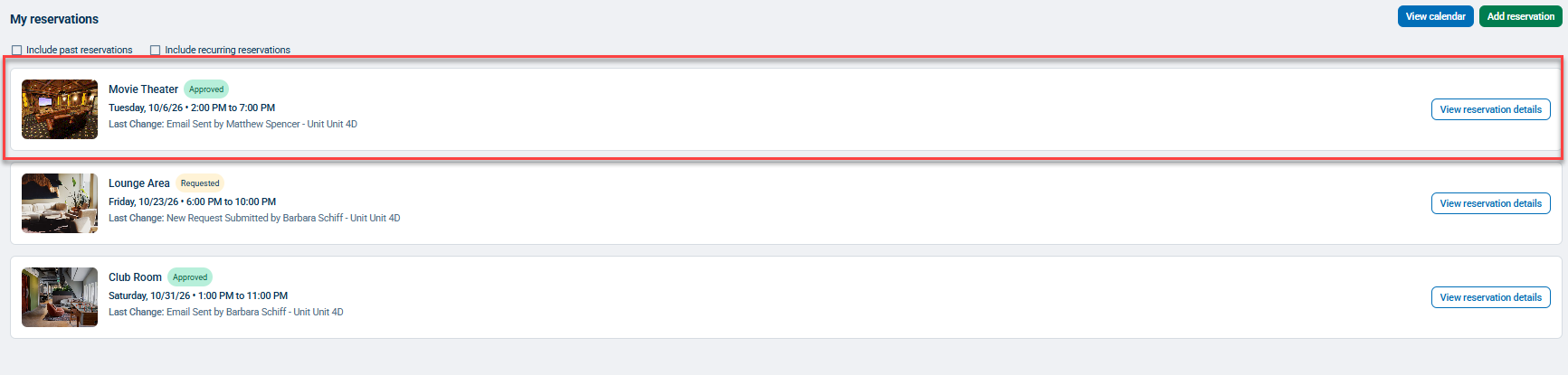
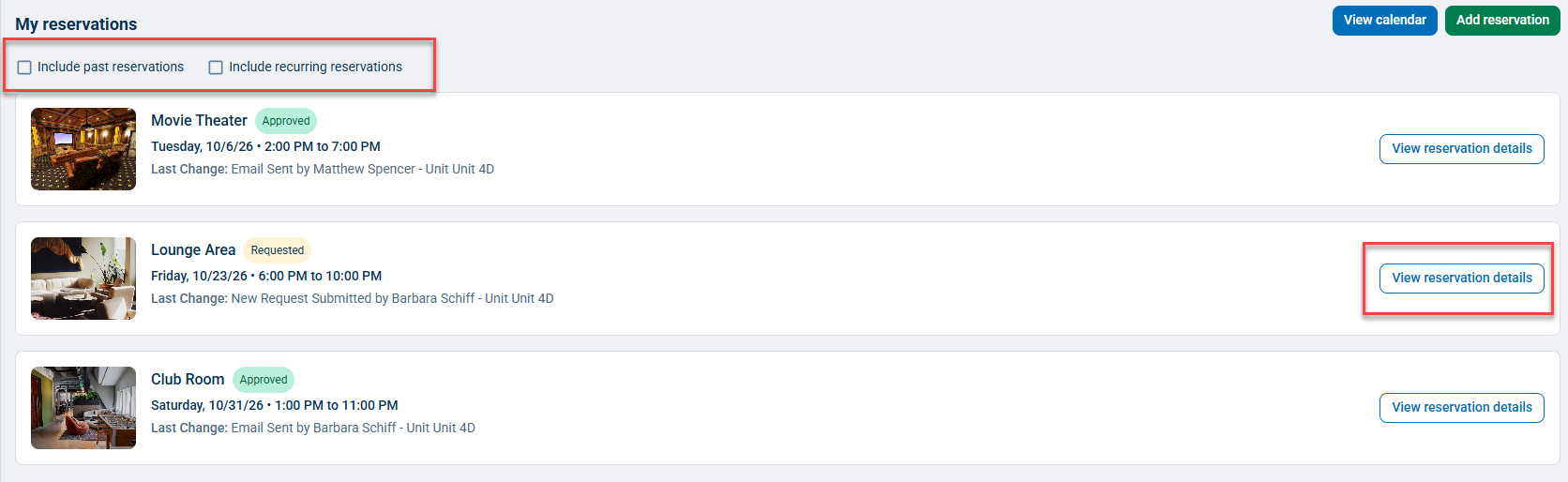
On the My Reservations page, you'll see a list of your upcoming reservations and their status. You'll also have the options to include past reservations and include recurring reservations. To view your reservations in a calendar format, click the View Calendar button.

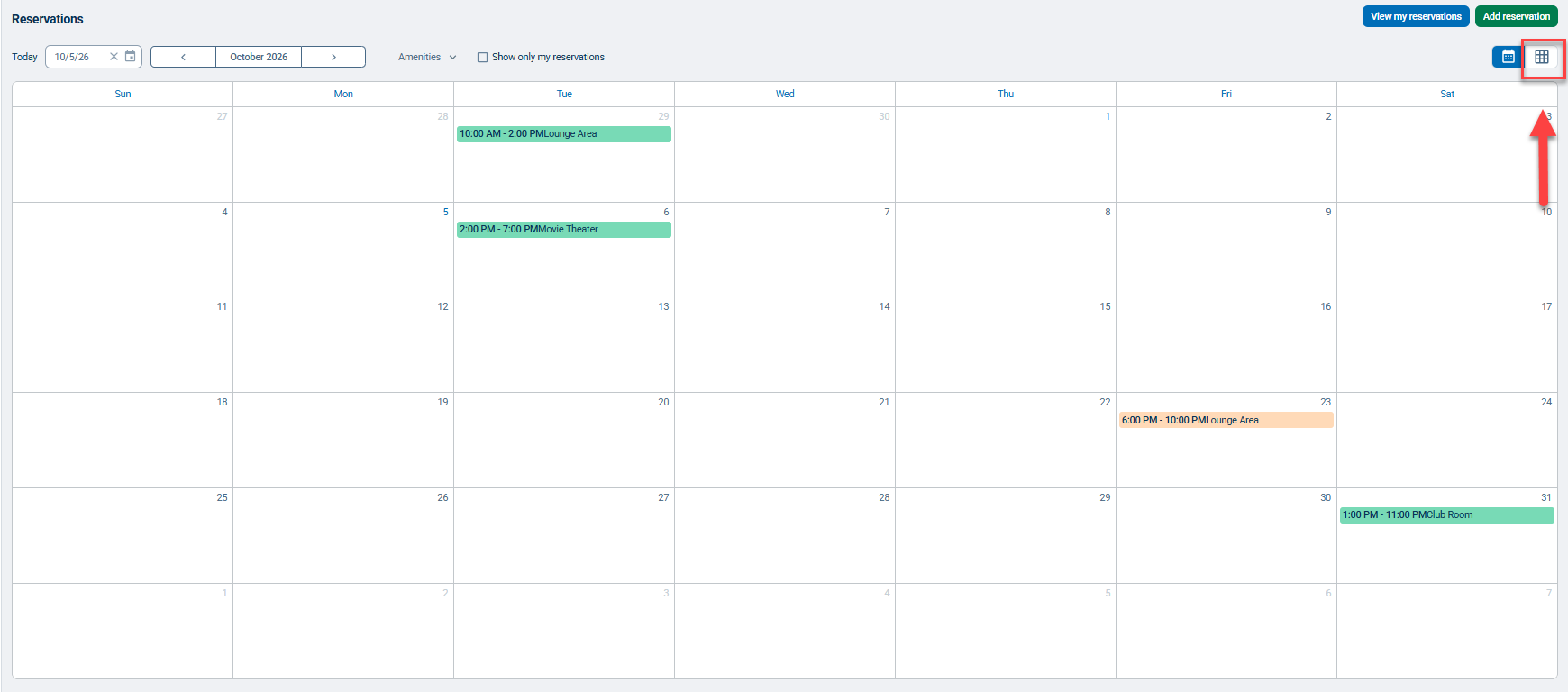
On the Reservations Calendar page, depending on your property settings, you will see all requested and approved requests or only requests for your unit. You can choose to view all amenities at once or select the specific amenity(s) you want to view.
To return to the list, click View My Reservations. To place a new reservation, click the green Add reservation button on either page.
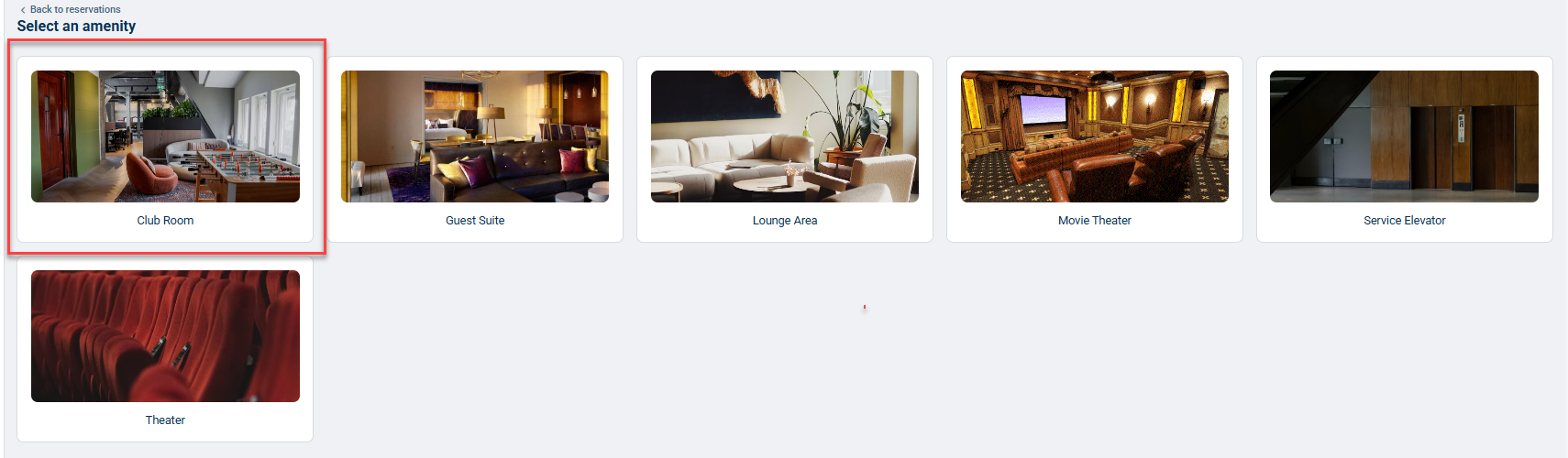
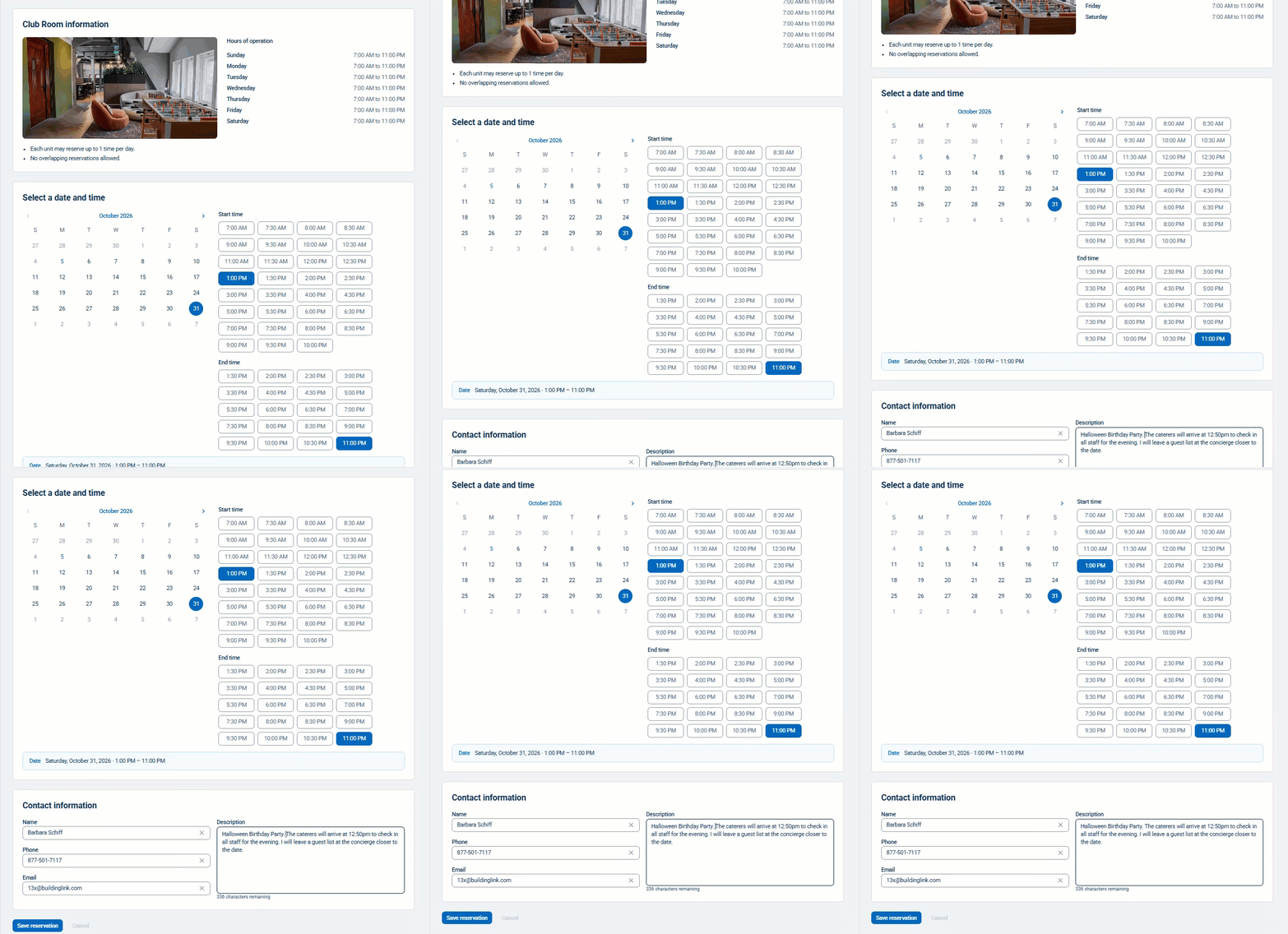
Next, select the amenity you want to reserve, then fill out the form from top to bottom and click the Save reservation button to submit your request.
You will be taken back to the My Reservations page where you will see the status of your submitted request, and depending on your property's settings, you may also receive email confirmation.
Note: Amenities that do not require management approval will automatically appear in the "Approved" status after you save the request.
Using the Amenity Reservations Availability Grid View
The Availability Grid View allows you to view the availability of all amenities or your selected amenity(s) for a specific date. You can access the Availability Grid View from the Reservations Calendar by clicking the  .
.
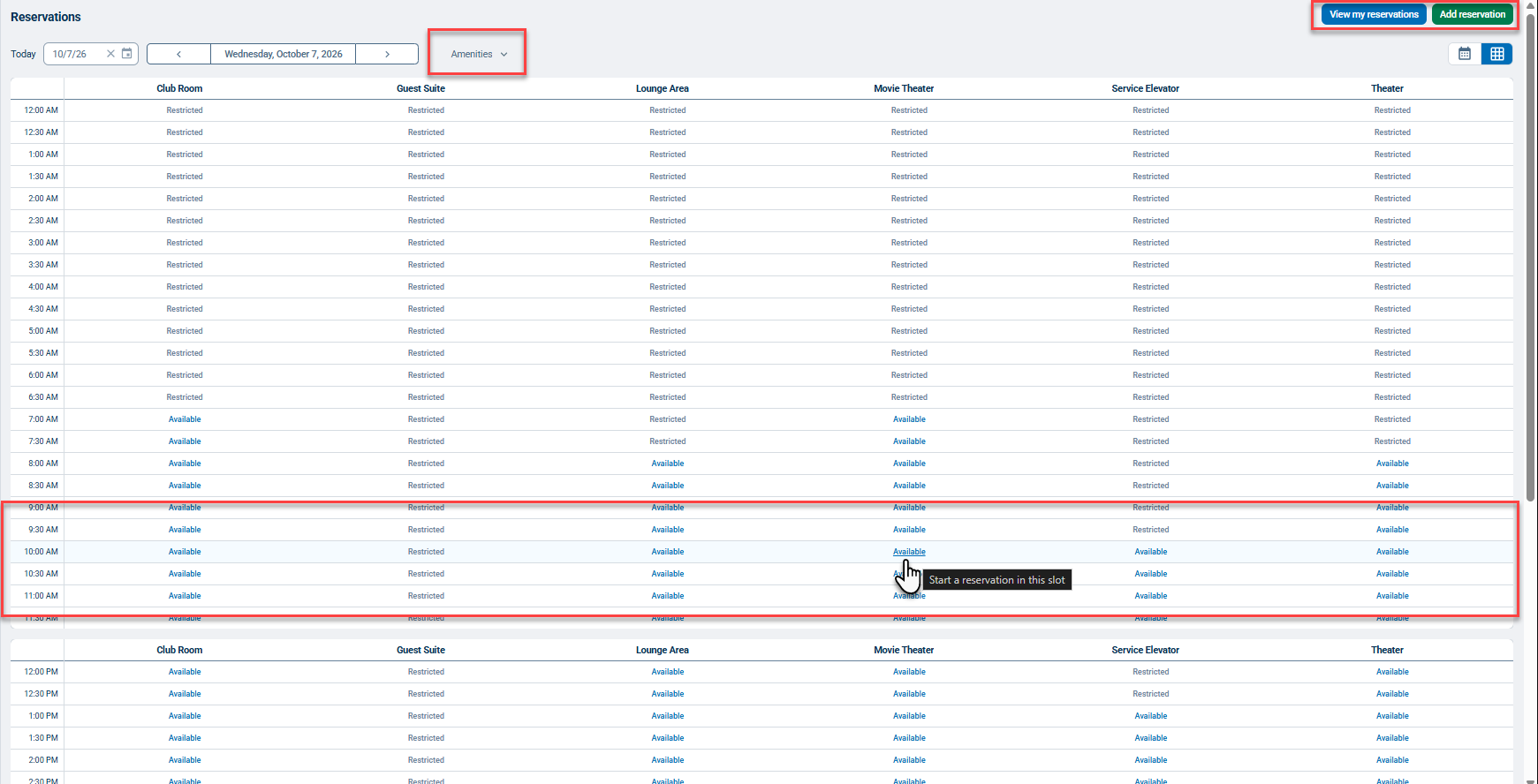
Next, you can choose to view all amenities at once or select the specific amenity(s) you want to view.
To place a new reservation, click an available time slot or click the Add reservation button. You can also view your current reservations by clicking View my reservations.
Viewing and Editing Amenity Requests
To view the status of a reservation request or to edit/cancel an existing request, click the
Reserve an amenity button in the Shortcuts section on the home page.
You'll see a list of your upcoming reservations and their status here. To view past reservations and/or to include recurring reservations, check the box next to the Include past reservations and/or Include recurring reservations options.
To edit a requested reservation, click View reservation details next to the reservation you'd like to edit.
To cancel your reservation, click the Cancel reservation button.
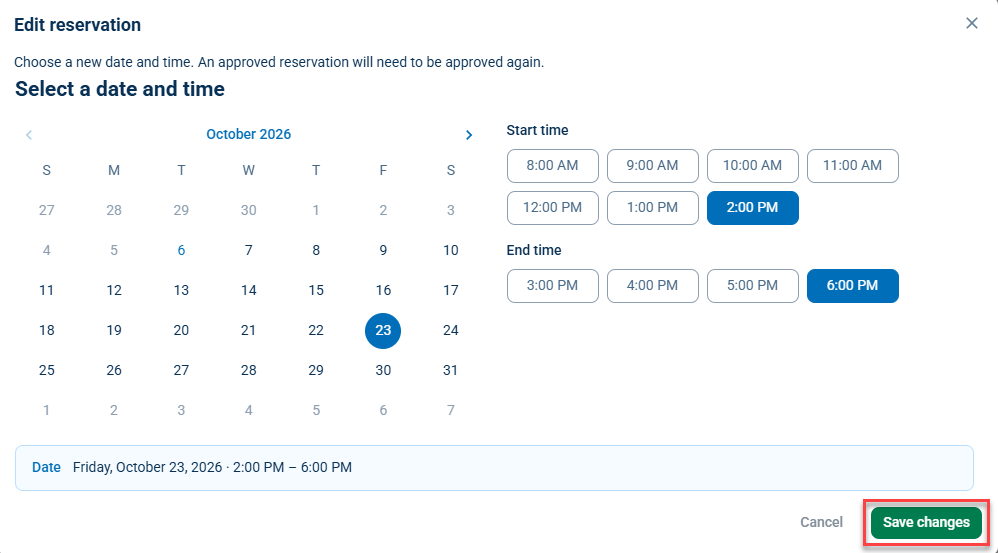
To edit the original reservation details, click the Edit reservation button. Remember to click the green Save changes button before leaving the page.
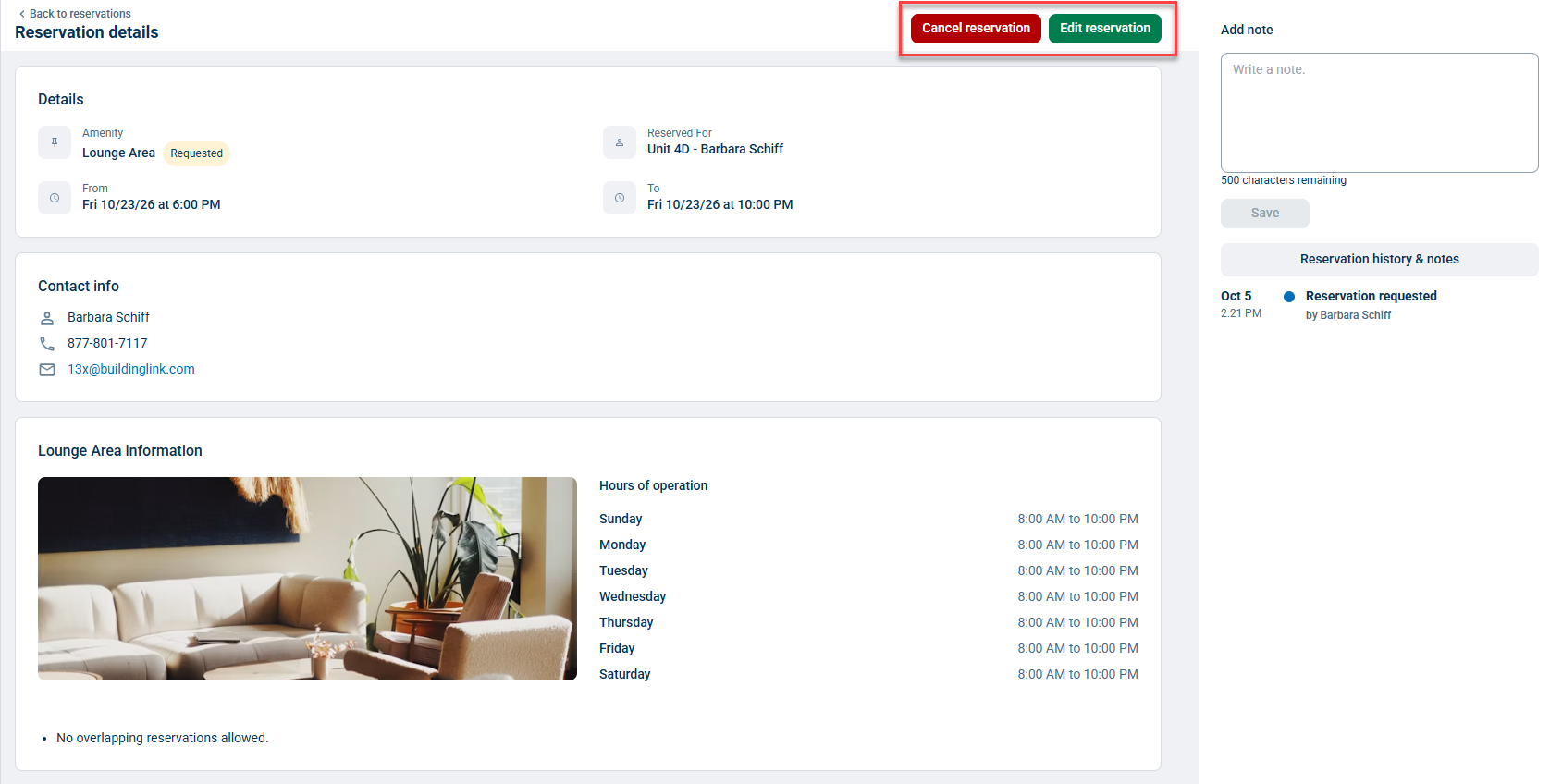
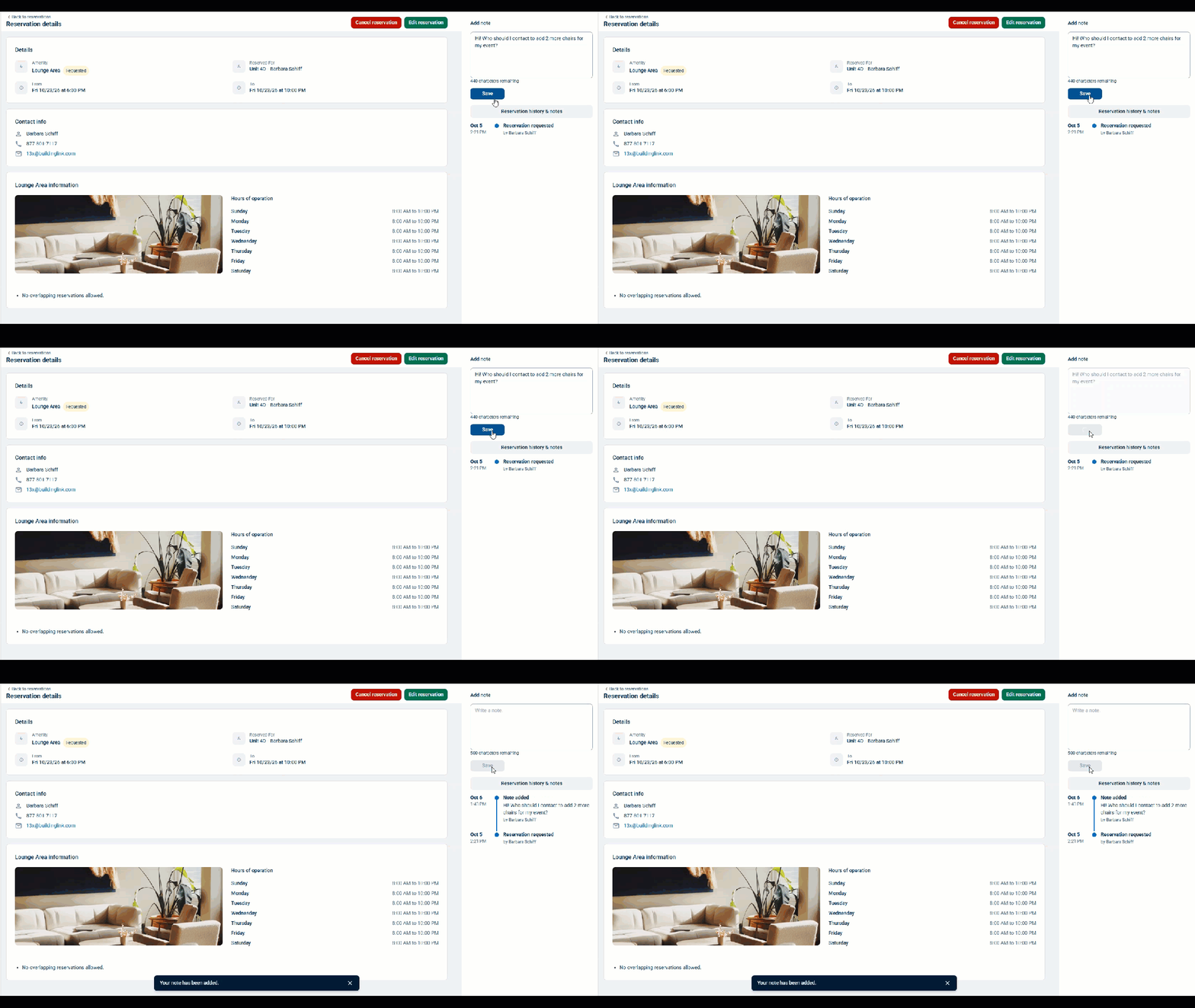
To add a note to a reservation, type it in the text box at the top right and click the Save button.
You will now see your note in the "Reservation History and Notes" section along with any notes from management and status changes made on the reservation.